


You ask Claude to generate a business proposal PDF. The result? A heading orphaned at the bottom of page one. A table sliced right through the middle by a page break. A final page with nothing on it but a lonely footer floating in a sea of whitespace.
AI agents can write great content. Turning that content into a print-ready PDF? That's where things fall apart. Page breaks land in the worst possible places, background colors vanish, cards and sections float loose across pages with no regard for layout.
This isn't an intelligence problem. It's a knowledge gap. The AI doesn't know the rules of print design.
But here's the thing: you don't need to know them either. Your AI does. That's what the Skills pattern solves, and specifically, what the PDF Best Practices Skill was built for.
The Problem: AI Agents Don't Know Print Design
Ask any AI agent to generate HTML for a PDF and you'll hit the same issues every time:
Page breaks in the wrong places. The AI writes a heading, then the page breaks, and the heading sits alone at the bottom with its content on the next page. Tables get sliced mid-row. A card component starts on one page and ends on another.
Elements floating loose. Content doesn't anchor properly to the page. Images overflow margins. Grid layouts that looked perfect in a browser collapse into a mess when rendered by a PDF engine.
Sparse pages. You get a 6-page document where page 5 is completely full and page 6 has a single sentence. The AI has no concept of content distribution across print pages.
Missing backgrounds. You designed a hero section with a dark blue gradient. In the browser, it's gorgeous. In the PDF? Pure white. The background colors disappeared entirely.
Tables without repeating headers. Your line items table spans two pages, but the column headers only appear on the first page. By page two, nobody knows what column they're reading.
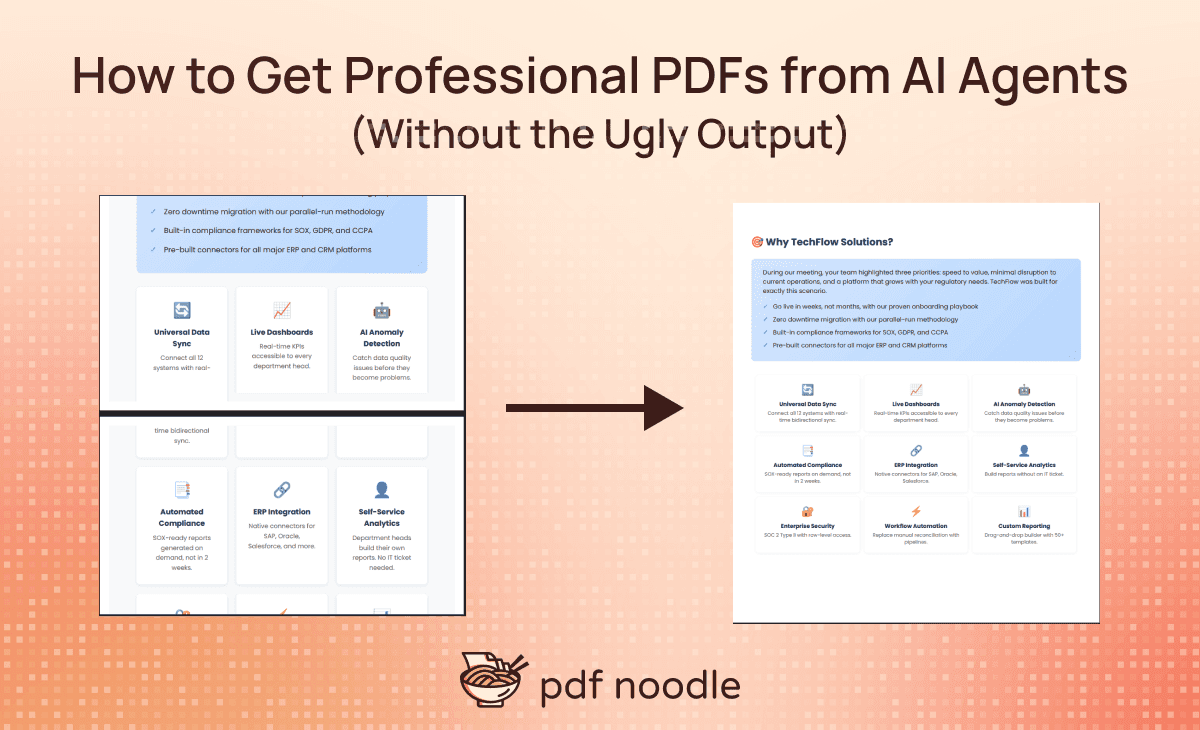
A Real Example: The "Before"
Here's what happens when you ask Claude to generate a business proposal PDF without any print design guidance. The prompt:
"Create an HTML business proposal for TechFlow Solutions pitching their enterprise analytics platform to Meridian Corp. Include a hero section, stats, challenges, solutions, project phasing, implementation timeline, and case studies."
The AI produces clean, well-structured HTML. It uses CSS Grid, Flexbox, gradients, and modern design patterns. In a browser, it looks professional.
As a PDF, it falls apart:
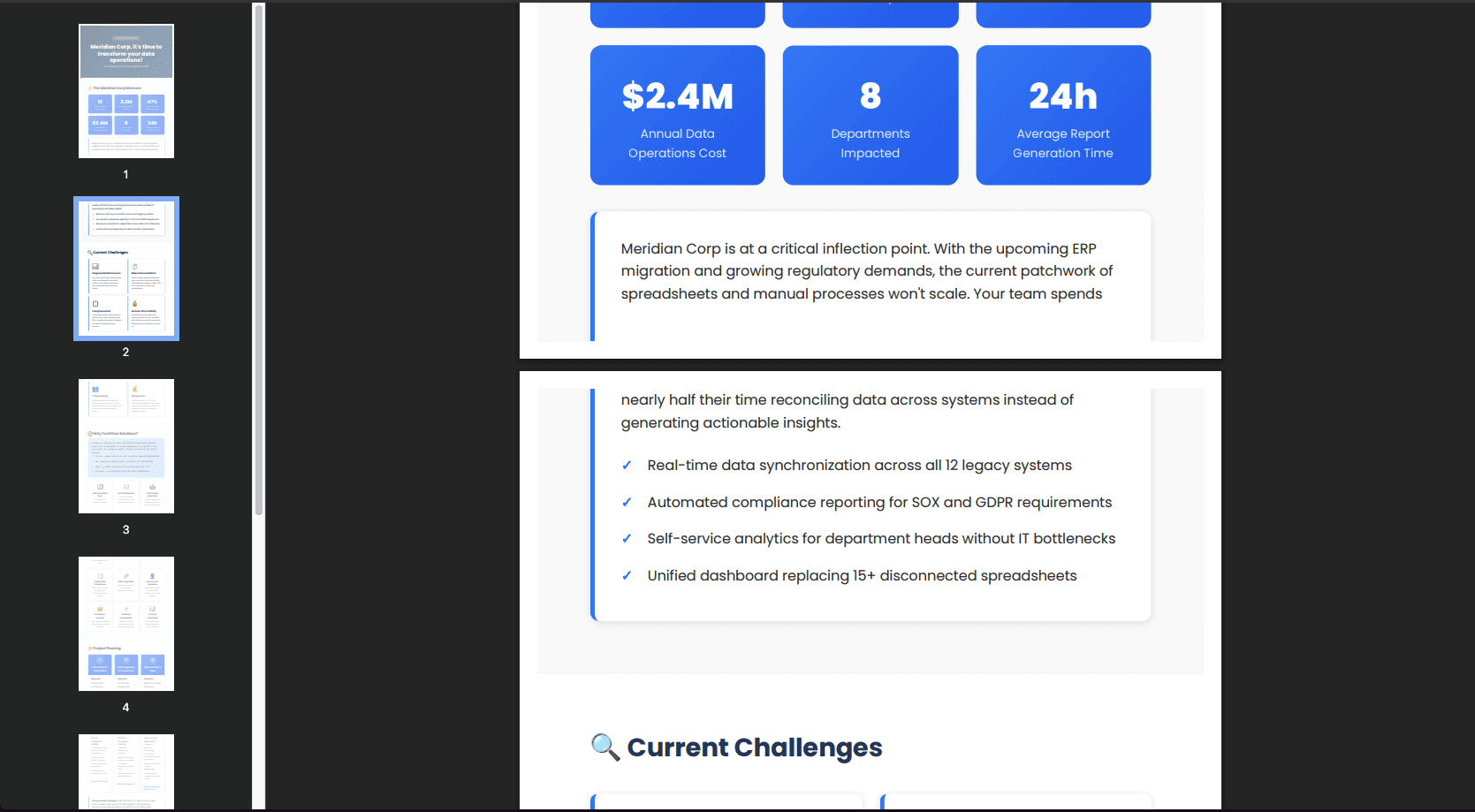
The hero section renders without its gradient background (white text on white background)
The stats grid collapses because CSS Grid doesn't behave the same in print contexts
Challenge cards get split across pages, with a heading on one page and its description on the next
The three-column phase cards break mid-content
The timeline's
::beforepseudo-element (the vertical line) disappears in printThe last page contains only the "150+ enterprises" box, wasting an entire page
Why This Happens (And Why You Don't Need to Fix It Yourself)
LLMs are trained on web content, not print specifications. The model has seen millions of web pages, but it hasn't internalized the quirks of PDF rendering engines like Puppeteer or Playwright.
HTML that renders beautifully in Chrome can break completely as a PDF because the rules are different. The AI has no idea that:
-webkit-print-color-adjust: exactis required or background colors vanishpage-break-inside: avoidprevents elements from being sliced across pagesA4 pages have a safe content area of 714px × 1043px with standard margins
<thead>elements cause table headers to repeat on every pageCSS Grid and complex Flexbox layouts often fail in print rendering, while
display: tableworks reliablyPseudo-elements like
::beforeand::afterwithheight: 100%break in PDF engines
The good news? You don't need to memorize any of this. You don't even need to understand it. Your AI can learn these rules and apply them automatically, every single time.
That's where Skills come in.
The Solution: Skills for AI Agents
A Skill is a packaged set of best practices that AI assistants load on-demand. Think of it as giving your AI a reference manual for a specific task.
When you install a Skill, the AI doesn't load it into every conversation. It detects when a task is relevant (like generating HTML for a PDF), reads the guidelines, and follows them automatically. You don't need to prompt it with instructions. The Skill handles it.
This is different from pasting best practices into your prompt every time. That approach has real problems:
Token-expensive: You're paying for the same instructions on every request
Error-prone: Forget one rule and the output breaks
Doesn't scale: Every team member has to remember the same prompt
Fragile: Best practices evolve, but your prompts don't update themselves
Skills solve all of these. Install once, benefit forever. The AI reads the skill when needed, and the whole team gets consistent, professional output.
For a deeper look at how Skills compare to MCP servers and traditional prompt engineering, Anthropic has a guide on what Skills are and how they fit into AI workflows.
What the PDF Best Practices Skill Teaches Your AI
The PDF Best Practices Skill covers 8 areas of HTML-to-PDF formatting. Here's a quick summary of the most impactful ones:
1. Document Setup
Every PDF needs a proper foundation. The skill teaches the AI to include the @page rule for A4 sizing, the critical -webkit-print-color-adjust: exact property, and a system font stack that renders consistently across PDF engines.
Without that print-color-adjust line, every background color and gradient disappears in the PDF. This single property is responsible for most "my PDF looks blank" issues.
2. Page Break Control
The skill teaches the AI to prevent elements from being sliced by page breaks:
This ensures headings stay with their content, cards don't split across pages, and table rows remain intact.
3. Print-Safe Layouts
Instead of CSS Grid or complex Flexbox (which can fail in print contexts), the skill directs the AI to use display: table and table-cell for multi-column layouts. These render consistently across all PDF engines.
4. Table Formatting
The skill enforces <thead> and <tbody> structure so table headers repeat on every page. It also sets table-layout: fixed for predictable column widths.
5. Content Density
If the last page of a document has less than 25% content, the skill includes reflow strategies: tightening line-height, reducing margins slightly, or adjusting font sizes for dense data sections.
Quick Checklist
Before generating any PDF, the skill ensures:
-webkit-print-color-adjust: exactis includedpage-break-inside: avoidon sections, cards, and table rowsTables use
<thead>and<tbody>structureImages have explicit width/height attributes
Multi-column layouts use
display: table, not CSS GridNo
::before/::afterpseudo-elements withheight: 100%Content is distributed to avoid sparse pages
For the full set of guidelines, check the Best Practices Skill documentation.
Before and After: Business Proposal
Same prompt. Same AI. Same content. The only difference is the PDF Best Practices Skill.
The Prompt
"Create an HTML business proposal for TechFlow Solutions pitching their enterprise analytics platform to Meridian Corp. Include a hero section, stats, challenges, solutions, project phasing, implementation timeline, and case studies.
Before:
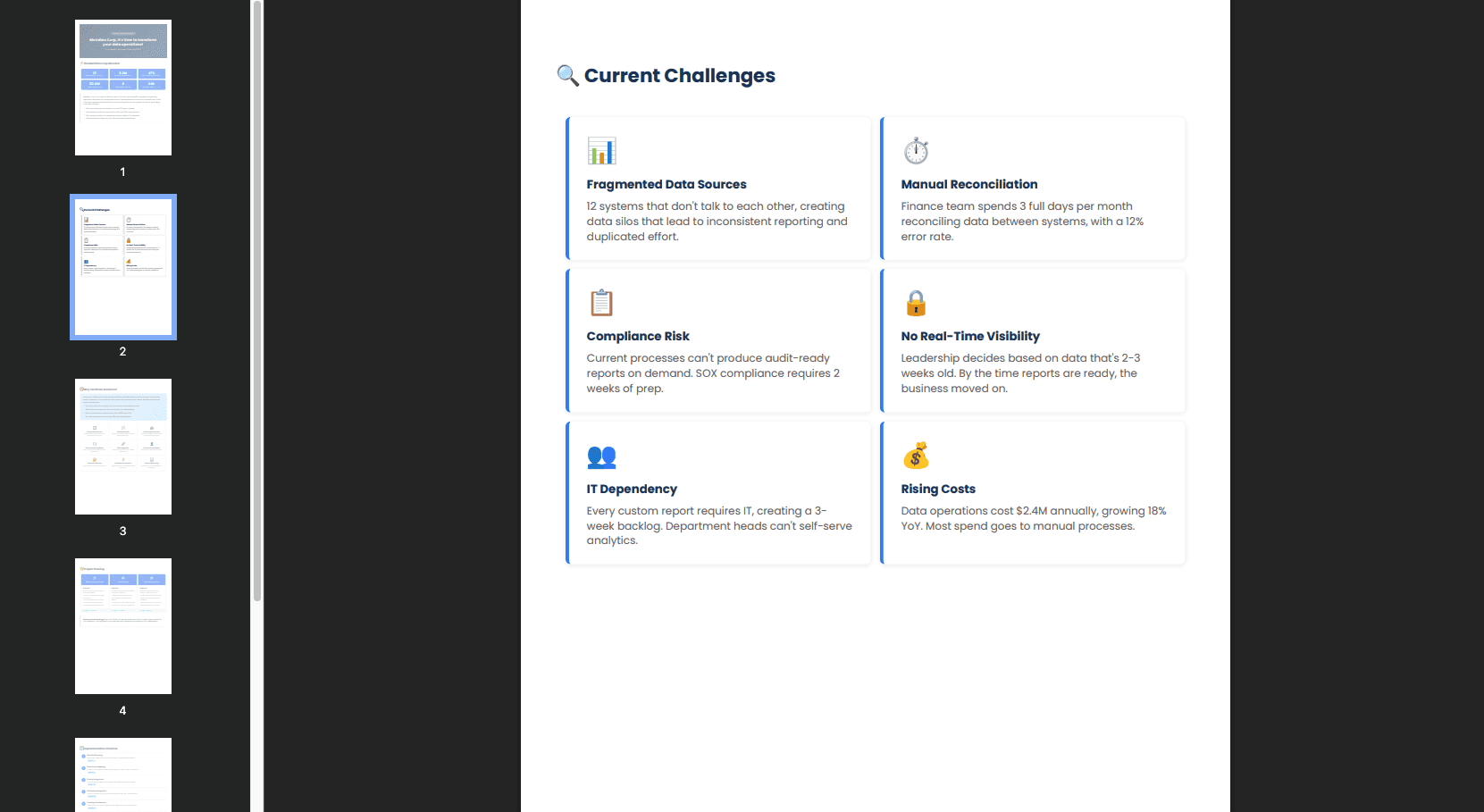
After
What Changed
Issue | Before (No Skill) | After (With Skill) |
|---|---|---|
Background colors | Missing (white hero, white stat cards) | Rendering correctly with |
Page breaks | Random, cards and tables sliced mid-content | Controlled with |
Multi-column layouts | CSS Grid/Flexbox, collapses in print |
|
Timeline decoration |
| Replaced with numbered step cards (no pseudo-elements) |
Content distribution | Last page nearly empty | Content redistributed with strategic |
Font sizes | Browser-sized (too large for A4) | Adjusted to |
Table headers | Don't repeat across pages | Would repeat with proper |
Key Code Differences
Before (breaks in print):
After (works in print):
Before (backgrounds vanish):
After (backgrounds render):
Before (timeline line disappears):
After (no pseudo-elements needed):
How to Use the PDF Best Practices Skill
Three ways to get started, depending on your setup:
Option 1: pdf noodle MCP Server (Recommended)
The MCP server gives your AI both the Best Practices Skill and direct PDF generation capabilities. Your AI writes the HTML, follows the best practices, and generates the PDF in one step.
Remote connection (Claude.ai web, ChatGPT):
Local server (Claude Desktop, Cursor):
Full setup instructions: MCP Setup Guide
Option 2: Install the Skill on Claude Desktop
If you just want the best practices without the full MCP server, you can install the skill directly on Claude Desktop:
Open Claude Desktop settings
Go to Skills (or use the Skills Directory)
Search for pdf-best-practices or install via terminal:
Once installed, Claude automatically applies these guidelines whenever you ask it to generate HTML for PDFs. No special prompting required.
Option 3: Reference from GitHub
For AI assistants that support direct skill references, point to the repository:
The SKILL.md file serves as the entry point, with links to detailed guides for each topic.
The Bigger Picture: Why Skills Beat Prompt Engineering
You could paste PDF best practices into every prompt. Some developers do. But this approach breaks down quickly.
Every time you ask for a PDF, you'd need to include 500+ words of CSS rules, layout guidance, and print-specific gotchas. Miss one rule and the output breaks. Change team members and the knowledge gets lost. The best practices evolve as PDF engines update, but your saved prompts stay frozen.
Skills flip this model. Install once, and the AI loads the relevant guidelines automatically. Update the skill, and everyone on the team benefits. The AI becomes a specialist in PDF generation, not a generalist that needs hand-holding on every request.
This is the "institutional knowledge" pattern for AI. The same way a senior developer knows to use <thead> for repeating headers without being told, a skilled AI knows to include page-break-inside: avoid without being prompted.
If you're already building your own HTML-to-PDF pipeline with Playwright, Puppeteer, or any other library, the Best Practices Skill improves the HTML your AI generates before it reaches your rendering engine. For a deeper look at print-specific CSS patterns, check out our guide on how to make any webpage printer-friendly.
Conclusion
AI agents can generate professional PDFs. They just need the right knowledge.
The Skills pattern solves this without complex prompts or manual intervention. Install the PDF Best Practices Skill once, and every document your AI generates follows print design rules automatically.
Or go further with the pdf noodle MCP server, which combines the best practices with direct PDF generation from natural language. Your AI writes the HTML, applies the rules, and delivers a professional PDF, all in one step.
FAQ
Why do AI agents generate ugly PDFs?
AI models are trained on web content, not print design. They don't know CSS print rules like page-break-inside: avoid or that -webkit-print-color-adjust: exact is required for background colors to render in PDFs. They also default to CSS Grid and Flexbox layouts that can break in PDF rendering engines.
What is an AI Skill?
A packaged set of best practices that AI assistants load on-demand. Skills provide domain expertise for specific tasks (like PDF generation) without requiring you to include instructions in every prompt. The AI detects when a task is relevant and reads the skill automatically.
How do I install the PDF Best Practices Skill?
Three options: use it with the pdf noodle MCP server, install it directly with npx skills add pdfnoodle/pdf-best-practices, or reference it from GitHub.
Does this work with Claude Desktop?
Yes. Install the skill directly on Claude Desktop through the Skills Directory or via terminal, or connect to the pdf noodle MCP server for full PDF generation capabilities.
Can I use this with my own PDF rendering pipeline?
Absolutely. The skill improves the HTML your AI generates regardless of which PDF engine you use. Whether you're running Playwright, Puppeteer, Gotenberg, or any other HTML-to-PDF tool, better HTML means better PDFs.