

Introduction to Serverless HTML to PDF Conversion
Looking for a straightforward guide to deploy HTML to PDF capabilities on a serverless architecture using AWS Lambda with Puppeteer? You’ve come to the right place!
While numerous tutorials explain HTML-to-PDF libraries, practical guidance on scaling this setup is rare. In this article, we’ll walk through implementing a scalable solution for generating PDFs in your SaaS environment.
Why Scalable PDF Generation Matters in SaaS
SaaS applications often require PDF generation for invoices, reports, or user-specific documents. Traditional server-based solutions can quickly become resource-heavy and difficult to scale. By using AWS Lambda’s serverless model, you can automatically handle scaling, reducing operational complexity and costs.
Puppeteer Overview
Puppeteer is a Node.js library that provides a high-level API to control Chrome or Chromium. It’s ideal for rendering web pages and converting them into PDFs. Running Puppeteer in a headless mode makes it well-suited for serverless environments like AWS Lambda.
While there are numerous resources on setting up Puppeteer for PDF generation, this guide focuses on integrating Puppeteer into a serverless AWS Lambda environment.
We have several guides on how to use puppeteer for pdf generation, so this article will focus mainly on the serverless architecture, but you can check out the full guides here:
- Guide for Puppeteer on javascript/Nodejs
- Guide for Puppeteer on python (Pyppeteer)
- Guide for Puppeteer on c-sharp (PuppeteerSharp)
- Guide for Puppeteer on Ruby on rails (Puppeteer-ruby)
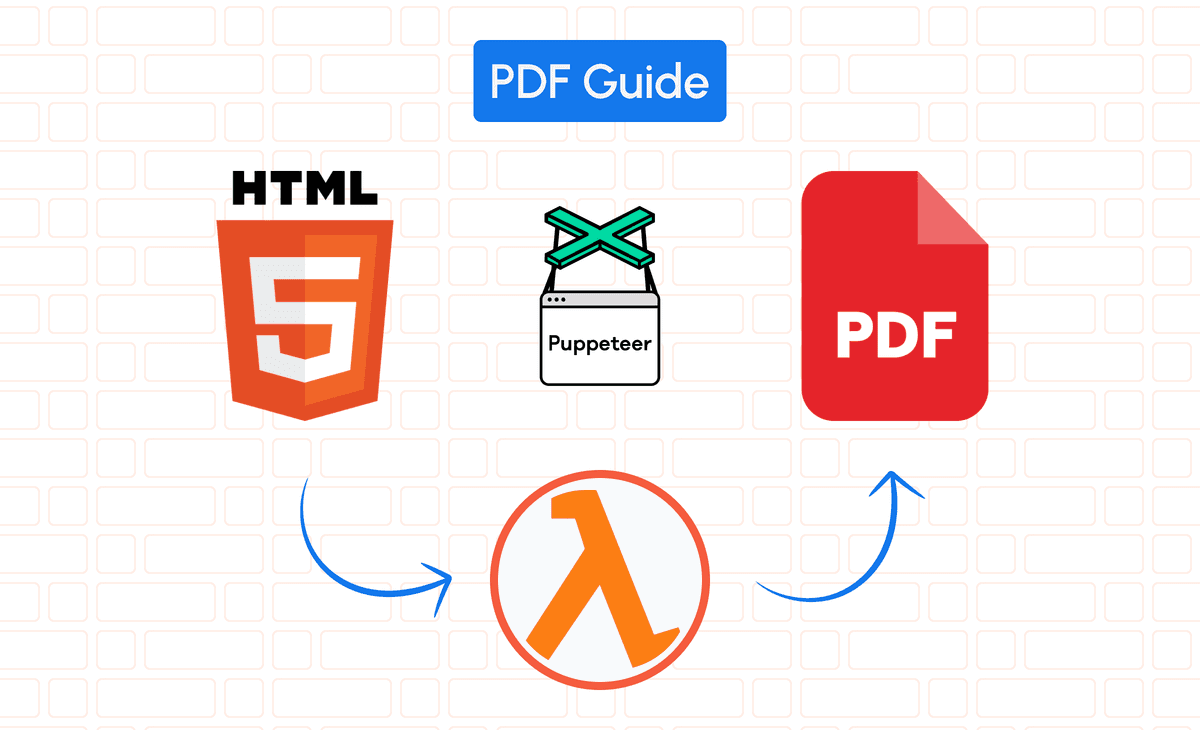
Setting Up Puppeteer and AWS Lambda for Serverless PDF Generation
Integrating Puppeteer with AWS Lambda lets you generate PDFs on-demand without worrying about underlying server maintenance.
Implementing the HTML to PDF Serverless Function
First, set up a Node.js project and install Puppeteer
npm init -y
npm install puppeteer-core chrome-aws-lambda
Create a script that converts HTML to PDF:
const chromium = require("chrome-aws-lambda");
const puppeteer = require("puppeteer-core");

exports.handler = async (event) => {
  let browser = null;
  try {
    browser = await puppeteer.launch({
      args: chromium.args,
      executablePath: await chromium.executablePath,
      headless: chromium.headless,
    });
    const page = await browser.newPage();
    // Navigate to a URL or set content directly. Example uses static URL.
    await page.goto("https://example.com", { waitUntil: "networkidle0" });
    const pdfBuffer = await page.pdf({ format: "A4" });
    return {
      statusCode: 200,
      headers: { "Content-Type": "application/pdf" },
      body: pdfBuffer.toString("base64"),
      isBase64Encoded: true,
    };
  } catch (error) {
    console.error(error);
    return {
      statusCode: 500,
      body: JSON.stringify({ message: "Internal server error" }),
    };
  } finally {
    if (browser !== null) {
      await browser.close();
    }
  }
};
Configuring AWS Lambda
AWS Lambda doesn’t ship with Chromium by default, so you’ll rely on chrome-aws-lambda for a precompiled binary. Ensure that you’ve deployed your code along with the node_modules that include chrome-aws-lambda and puppeteer-core.
If you need more customization, consider a Lambda Layer containing Chromium binaries. However, chrome-aws-lambda is often the easiest route.
Configuring Lambda with Docker (Recommended)
To simplify dependencies and ensure a consistent environment, you can bundle everything using Docker.
Dockerfile Example:
# NodeJS 20 on Amazon Linux 2023
FROM public.ecr.aws/lambda/nodejs:20.2024.04.24.10-x86_64

# Install dependencies required by Chromium (as per chrome-aws-lambda documentation)
RUN dnf -y install \
    nss \
    dbus \
    atk \
    cups \
    at-spi2-atk \
    libdrm \
    libXcomposite \
    libXdamage \
    libXfixes \
    libXrandr \
    mesa-libgbm \
    pango \
    alsa-lib \
    lsof

COPY package*.json ${LAMBDA_TASK_ROOT}
COPY . ${LAMBDA_TASK_ROOT}

RUN chmod 755 -R ${LAMBDA_TASK_ROOT}
RUN npm install

# Set Puppeteer to skip downloading Chromium since we'll rely on chrome-aws-lambda
ENV PUPPETEER_SKIP_CHROMIUM_DOWNLOAD=true \
    PUPPETEER_EXECUTABLE_PATH=/opt/bin/chromium

# If needed, you can run `npm install puppeteer-core chrome-aws-lambda` as they won't download a separate browser.
# Already done via package.json dependencies.
CMD ["app.handler"]
For more details on optimizing your Docker image, consider this resource on building custom Docker images for AWS Lambda.
Alternative: Create and Deploy a Chromium Lambda Layer
First, you need to create a Lambda Layer that includes the Chromium binary compatible with AWS Lambda’s execution environment.
Steps to Create the Layer:
1. Download a Compatible Chromium Binary:
You can download a precompiled Chromium binary optimized for AWS Lambda from repositories like alixaxel/chrome-aws-lambda or serverless-chrome. Alternatively, you can build your own Chromium binary tailored to your needs.
2. Prepare the Directory Structure:
AWS Lambda Layers expect a specific directory structure. For executables, place Chromium in the /bin directory.
mkdir -p layer/bin3. Add Chromium to the Layer:
Place the downloaded Chromium binary into the layer/bin directory.
cp path/to/chromium layer/bin/4. Create the ZIP Archive:
Zip the layer directory to create the Lambda Layer package.
cd layer
zip -r chromium-layer.zip .
5. Upload the Layer to AWS Lambda:
• Navigate to the AWS Lambda Console.
• Go to Layers in the left-hand menu.
• Click Create layer.
• Provide a name (e.g., chromium-layer).
• Upload the chromium-layer.zip file.
• Specify the compatible runtime (e.g., Node.js 14.x, Node.js 16.x, etc.).
• Click Create.
But we'd recommend using chrome-aws-lambda instead.
Full Lambda Function Example with Dynamic HTML
To generate PDFs from dynamic HTML content (instead of navigating to a URL), modify the handler:
const chromium = require("chrome-aws-lambda");
const puppeteer = require("puppeteer-core");

exports.handler = async (event) => {
  let browser = null;
  let page = null;
  try {
    browser = await puppeteer.launch({
      args: chromium.args,
      executablePath: await chromium.executablePath,
      headless: chromium.headless,
    });
    const context = await browser.createIncognitoBrowserContext();
    page = await context.newPage();
    await page.setContent(event.htmlContent, { waitUntil: "networkidle0" });
    const pdfBuffer = await page.pdf({ format: "A4" });
    return {
      statusCode: 200,
      headers: { "Content-Type": "application/pdf" },
      body: pdfBuffer.toString("base64"),
      isBase64Encoded: true,
    };
  } catch (error) {
    console.error(error);
    return {
      statusCode: 500,
      headers: { "Content-Type": "application/json" },
      body: JSON.stringify({ message: "Internal server error" }),
    };
  } finally {
    if (page) await page.close();
    if (browser) await browser.close();
  }
};
Uploading the Docker Image to AWS
To deploy via container images:
1. Build the Docker Image:
docker build -t your-image-name .If you’re on an M1 Mac, consider:
docker buildx build --platform linux/amd64 -t your-image-name .2. Tag Your Docker Image:
aws ecr create-repository --repository-name your-repo-name
aws ecr get-login-password --region your-region | docker login --username AWS --password-stdin your-account-id.dkr.ecr.your-region.amazonaws.com
docker tag your-image-name:latest your-account-id.dkr.ecr.your-region.amazonaws.com/your-repo-name:latest
3. Push to ECR:
docker push your-account-id.dkr.ecr.your-region.amazonaws.com/your-repo-name:latest4. Deploy the Lambda:
In the AWS Lambda console, create a new function using the container image from ECR.
Advanced Topics
Handling Concurrency and Scaling
AWS Lambda can run up to 1,000 concurrent instances by default. If you expect higher load, request a quota increase in the AWS Service Quotas console.
Common Puppeteer Issues in AWS Lambda
Memory Constraints:
Chromium can be memory-intensive. Cleaning up /tmp after each run can help manage disk space.
const { exec } = require("child_process");
exec("rm -rf /tmp/*", (_error, stdout) =>
  console.log(`Clearing /tmp directory: ${stdout}`)
);
Architecture Compatibility:
If developing on an M1 Mac, cross-compile using buildx:
docker buildx build --platform linux/amd64 -t your-repo/your-image-name .Alternative: Convert HTML to PDF Using pdf noodle
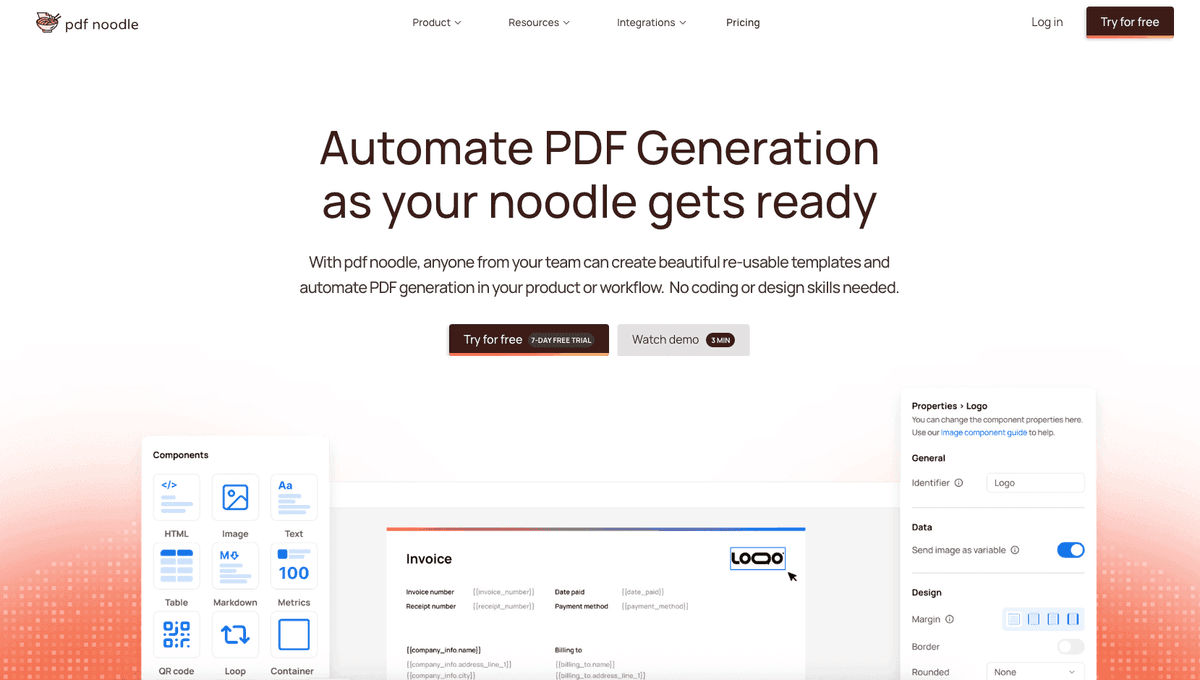
Managing HTML-to-PDF conversion at scale can quickly become a nightmare!
Especially in serverless environments where cold starts, memory limits, and headless browser quirks love to break at the worst possible time (we even wrote a full article about it). Add constant template iterations, version control headaches, and the need to support non-technical contributors, and suddenly your “simple PDF library” turns into an ongoing engineering project.
pdf noodle eliminates all of that.
Instead of maintaining brittle infrastructure or wrestling with outdated pdf libraries, pdf noodle gives you a battle-tested HTML to PDF API that just works!
Fast, scalable, and designed for both developers and non-developers. You send raw HTML or use our AI-powered template builder, and pdf noodle handles the rendering, scaling, optimization, and delivery so your team doesn’t have to.
Here's an example of a simple API request to generate your pixel-perfect PDF with just a few lines of code:
fetch('https://api.pdfnoodle.com/v1/html-to-pdf/sync', {
  method: 'POST',
  body: JSON.stringify({ html:'your-html' }),
  headers: { 'Authorization' : 'Bearer your-api-key' }
});
pdf noodle also includes a powerful AI Agent that can generate PDF templates instantly, along with a modern editor for refining the design, also using AI, to match your brand. You don't need developing or design experience to quickly update layouts, adjust styling, and manage template versions.
Here’s a quick demo showing how it works:
You can create your account and design your first template without any upfront payment.
Conclusion
Implementing HTML to PDF generation on a serverless architecture using Puppeteer and AWS Lambda provides a scalable and maintenance-free approach. While setting up this environment may require initial effort, the payoff is a highly flexible, cost-effective, and automated PDF generation pipeline.
If you don't want to waste time maintaining pdfs layouts and their infrastructure or if you don't want to keep track of best practices to generate PDFs at scale, third-party PDF APIs like pdf noodle will save you hours of work and deliver a high quality pdf layout.
Try it yourself: Need a quick conversion without writing code? Use our free HTML to PDF converter — no signup required.
Too large to share? Reduce PDF file size for free with our online tool — no signup required.