

Introduction to Pyppeteer for PDF Generation
Pyppeteer, a Python port of Puppeteer, renders HTML/CSS just like a real browser—making it ideal for modern web apps. Instead of manually coding PDFs (as with ReportLab) or manipulating existing PDFs (as with PyPDF2), you can design reports with standard web technologies and generate pixel-perfect PDFs automatically.
For SaaS developers looking to create PDF reports directly from web applications, Pyppeteer provides a streamlined solution to generate high-quality, dynamic PDFs with minimal friction.
You can check the full documentation here.
Comparing Pyppeteer with Other PDF Libraries and Tools
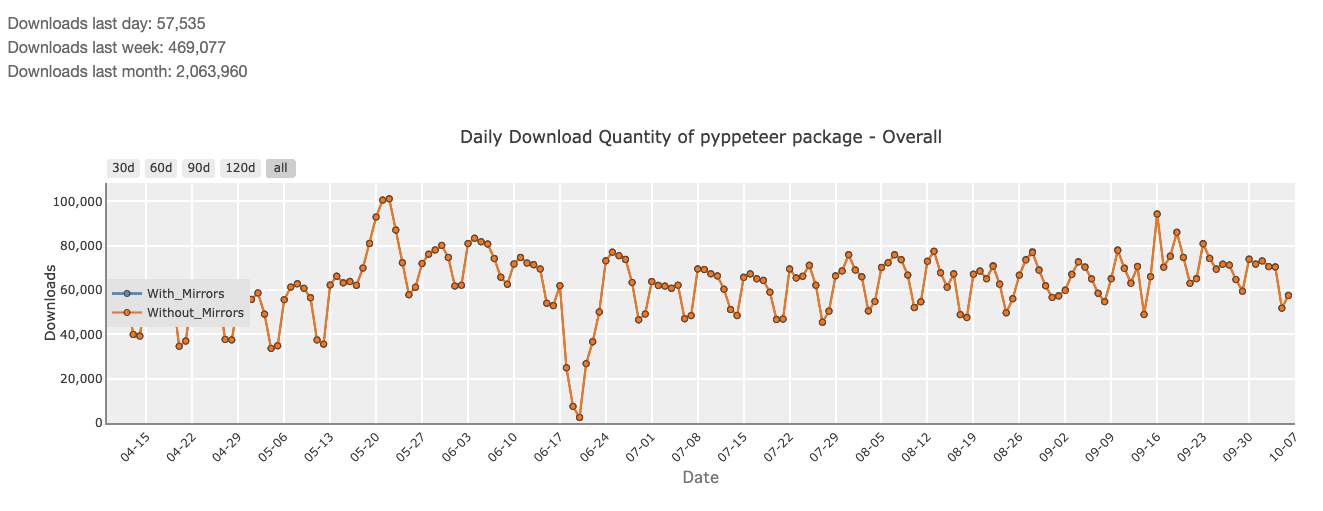
Comparing Pyppeteer to Other Popular Python PDF Libraries:
• Pyppeteer vs. Playwright: Both Pyppeteer and Playwright can generate PDFs from HTML, but Playwright is generally more robust for broader web automation use cases, supporting multiple browsers like Firefox and WebKit, whereas Pyppeteer focuses solely on Chromium. If your primary goal is HTML-to-PDF conversion and you don’t need multi-browser support, Pyppeteer may offer simpler usage. Playwright, on the other hand, excels when broader testing or automation beyond Chromium is needed.
• Pyppeteer vs. ReportLab: ReportLab is a powerful Python library for creating PDFs programmatically. However, it doesn’t support HTML/CSS rendering directly. ReportLab is more suited for constructing PDFs from scratch using Python, making it ideal for static reports or invoices that don’t rely on existing HTML content. In contrast, Pyppeteer allows you to leverage your existing HTML/CSS designs, which is more efficient for modern web applications.
• Pyppeteer vs. PyPDF2: PyPDF2 focuses on manipulating existing PDFs—merging, splitting, rotating, etc. While useful for handling PDFs once they’re created, PyPDF2 doesn’t offer HTML-to-PDF conversion. This makes Pyppeteer the superior option for generating PDFs dynamically from HTML content, especially when working with web-based layouts.
If you want to go deep on a full comparison between the best pdf libraries in python in 2025, you can check out this guide.
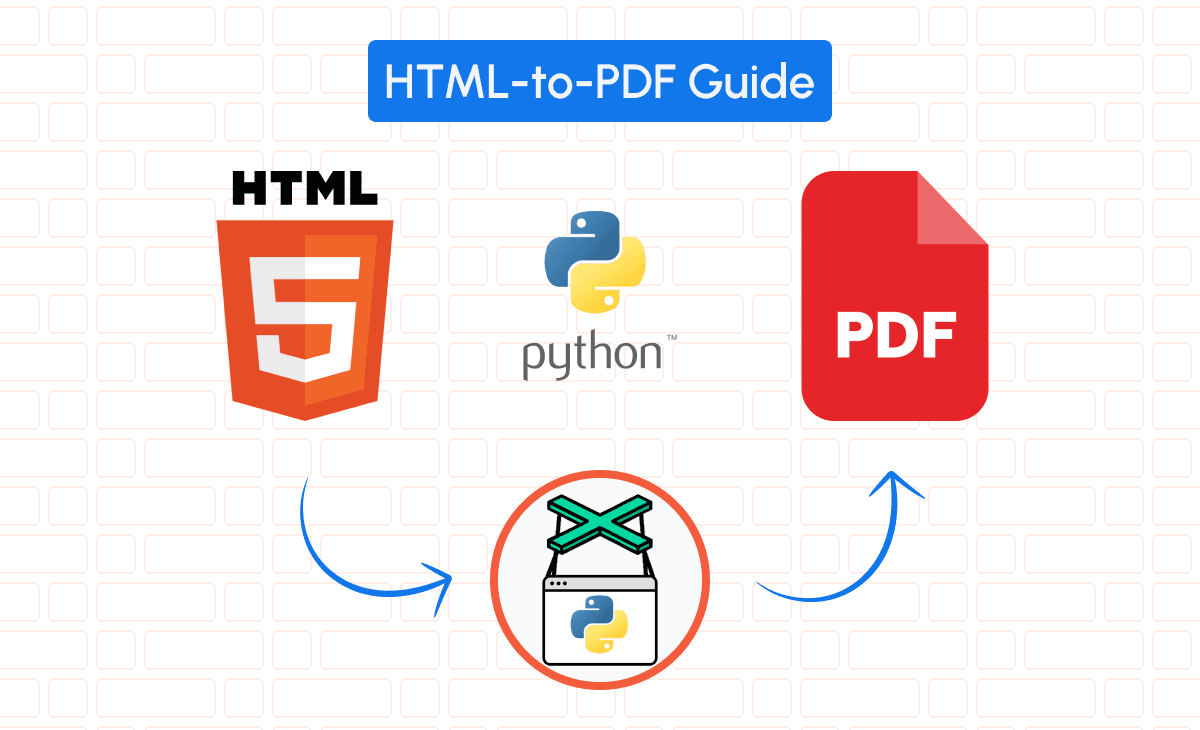
Setting Up Your Environment for Pyppeteer PDF Generation
Prerequisites: What You Need to Get Started with Pyppeteer
To begin, you’ll need:
• Python 3.6 or later
• Node.js (required for Puppeteer/Chromium)
• Basic knowledge of HTML, CSS, and Python
Check your Python and Node.js installations:
python --version
node --version
If Node.js is not installed, download it from nodejs.org.
Installing Pyppeteer in Your Python Project
Install Pyppeteer using pip:
pip install pyppeteerThis command installs Pyppeteer along with a bundled Chromium version for rendering.
Integrating Pyppeteer with Your Existing HTML Rendering Setup
With Pyppeteer installed, you can now integrate it with your existing HTML rendering pipeline. If you’re using a template engine like Jinja2, you can dynamically populate the HTML content and pass it to Pyppeteer.
Here’s a basic Jinja2 template:
<!DOCTYPE html>
<html lang="en">
  <head>

    <meta charset="UTF-8" />

    <meta name="viewport" content="width=device-width, initial-scale=1.0" />

    <title>Invoice</title>

    <style>
          body { font-family: Arial, sans-serif; }
          .header { text-align: center; font-size: 24px; }
          .content { padding: 20px; }

    </style>
  </head>
  <body>

    <div class="header">

      <h1>Invoice #{{ invoice_id }}</h1>

    </div>

    <div class="content">

      <p>Customer: {{ customer_name }}</p>

      <p>Total: ${{ total_amount }}</p>

    </div>
  </body>
</html>How to Generate a PDF from HTML Using Pyppeteer
Converting HTML to PDF Using Pyppeteer
To generate a PDF from HTML, use the following Python script:
import asyncio
from pyppeteer import launch
async def html_to_pdf(html_content, output_path):
    browser = await launch()
    page = await browser.newPage()
    await page.setContent(html_content)
    await page.pdf({'path': output_path, 'format': 'A4'})
    await browser.close()
html_content = '''
<!DOCTYPE html>
<html>
  <body>
    <h1>Hello, PDF World!</h1>
  </body>
</html>
'''
asyncio.get_event_loop().run_until_complete(html_to_pdf(html_content, 'output.pdf'))
This script renders your HTML and generates a PDF file.
Generating a PDF from a Website URL Using Pyppeteer
Beyond rendering local HTML strings, Pyppeteer also allows you to capture full websites by navigating to a given URL. This approach is useful for archiving live content or automating the creation of print-ready snapshots of any dynamic webpage. Here’s a quick example showing how to generate a PDF from a URL:
import asyncio
from pyppeteer import launch

async def pdf_from_url(url, output_path):
    # Launch a headless browser
    browser = await launch()
    page = await browser.newPage()
    # Navigate to the specified URL
    # 'networkidle2' ensures all network requests have finished
    await page.goto(url, {'waitUntil': 'networkidle2'})
    # Emulate print media to match how pages look when printed
    await page.emulateMediaType('print')
    # Generate PDF in A4 format with background graphics
    await page.pdf({
        'path': output_path,
        'format': 'A4',
        'printBackground': True
    })
    # Close the browser
    await browser.close()

# Usage example
asyncio.get_event_loop().run_until_complete(
    pdf_from_url('https://example.com', 'website_snapshot.pdf')
)
In this snippet, goto() fetches the live webpage, which can include JavaScript-driven elements and dynamic data. Setting {'waitUntil': 'networkidle2'} ensures all requests finish before rendering the PDF, preventing partially loaded images or missing elements. Using printBackground retains background images and colors in the generated PDF.
Customizing PDF Output: Headers, Footers, and Page Formats
You can easily customize the PDF format with Pyppeteer. Add headers, footers, or set the page size using the pdf() function:
await page.pdf({
    'path': 'output.pdf',
    'format': 'A4',
    'displayHeaderFooter': True,
    'footerTemplate': '<span class="pageNumber"></span> of <span class="totalPages"></span>',
    'margin': {'top': '20px', 'bottom': '40px'}
})
This code adds page numbers to the footer, customizing your PDF output.
Common Pyppeteer Issues & How to Fix Them
There are several common issues that developers face when generating PDFs from HTML using Pyppeteer:
-
Fonts not displaying correctly:
• Cause: Custom fonts or images aren’t fully loaded before PDF creation.
• Solution: Use await page.waitForSelector() or await page.waitForFunction() to ensure assets finish loading.
-
Missing Print Styles
• Cause: By default, Pyppeteer uses screen media.
• Solution: await page.emulateMediaType('print') to enforce print styling.
await page.emulateMediaType('print')-
Background Colors Not Appearing
• Cause: Background printing is off by default.
• Solution: Enable it with 'printBackground': True in page.pdf().
await page.pdf({'path': 'output.pdf', 'printBackground': True})-
JavaScript Not Fully Executing
• Cause: The script might close the browser before JS finalizes.
• Solution: Wait for network idle or a specific DOM event.
Alternative: Convert HTML to PDF Using pdf noodle
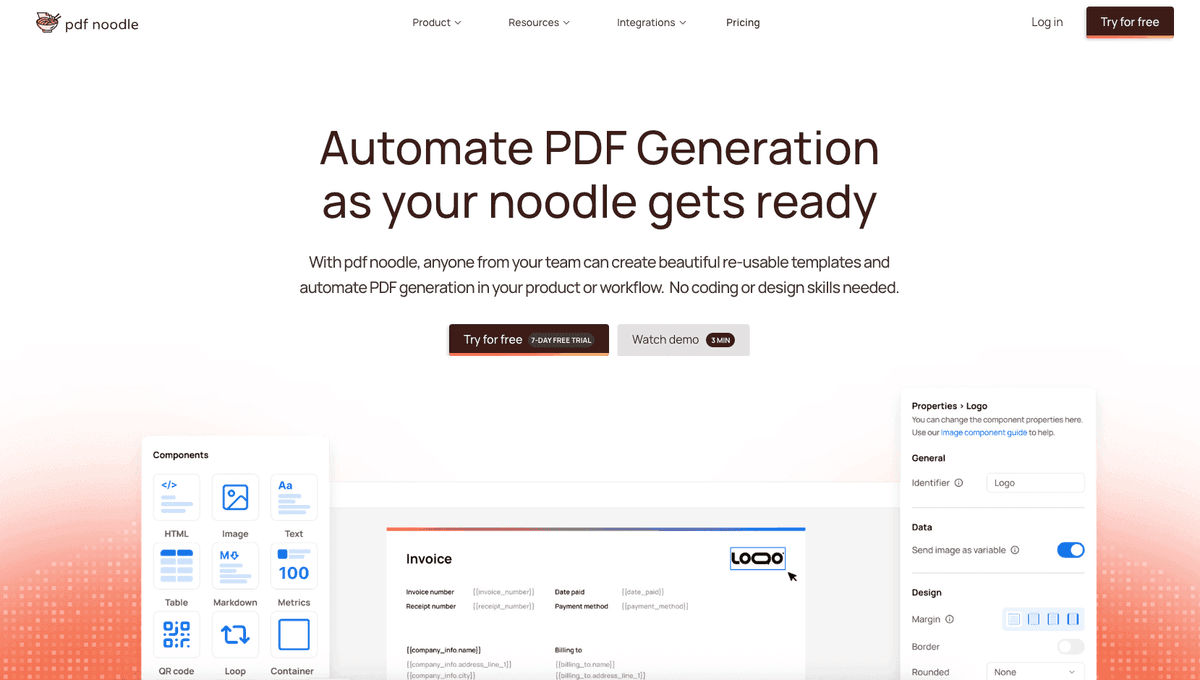
Managing HTML-to-PDF conversion at scale can quickly become a nightmare!
Especially in serverless environments where cold starts, memory limits, and headless browser quirks love to break at the worst possible time (we even wrote a full article about it). Add constant template iterations, version control headaches, and the need to support non-technical contributors, and suddenly your “simple PDF library” turns into an ongoing engineering project.
pdf noodle eliminates all of that.
Instead of maintaining brittle infrastructure or wrestling with outdated pdf libraries, pdf noodle gives you a battle-tested PDF generation API that just works!
Fast, scalable, and designed for both developers and non-developers. You send raw HTML or use our AI-powered template builder, and pdf noodle handles the rendering, scaling, optimization, and delivery so your team doesn’t have to.
Here's an example of a simple API request to generate your pixel-perfect PDF with just a few lines of code:
import requests

url = 'https://api.pdfnoodle.com/v1/html-to-pdf/sync'
payload = {
    "html": "<html>...your-html-here",
}
headers = {"Authorization": "Bearer YOUR_API_KEY"}

response = requests.post(url, json=payload, headers=headers)

with open('invoice.pdf', 'wb') as f:
    f.write(response.content)
pdf noodle also includes a powerful AI Agent that can generate PDF templates instantly, along with a modern editor for refining the design, also using AI, to match your brand. You don't need developing or design experience to quickly update layouts, adjust styling, and manage template versions.
Here’s a quick demo showing how it works:
You can create your account and design your first template without any upfront payment.
Conclusion
With Pyppeteer’s browser-like rendering, you can automate complex HTML-to-PDF tasks, ensuring high fidelity for web designs, charts, and interactive elements. Whether you’re a SaaS developer creating on-demand reports or need a robust API-based approach for massive PDF generation, the tools and techniques covered here will help you craft professional PDFs.
If you don't want to waste time maintaining pdfs layouts and their infrastructure or if you don't want to keep track of best practices to generate PDFs at scale, third-party PDF APIs like pdf noodle will save you hours of work and deliver a high quality pdf layout.
Try it yourself: Need a quick conversion without writing code? Use our HTML to PDF tool online — no signup required.