

Introduction to PDF Generation with QuestPDF
QuestPDF is an open-source .NET library designed to streamline the creation of PDF documents using C#. It offers a fluent API that simplifies the process of defining complex layouts and styles, making it an excellent choice for developers looking to generate PDF reports in their SaaS applications.
In this article, you’ll discover how QuestPDF can simplify PDF generation in your .NET applications. We’ll also explore why it’s a strong contender for HTML-to-PDF scenarios—offering flexibility when you want to integrate templating engines and advanced layouts.
You can check out their full documentation here.
Comparison Between QuestPDF and Other C# PDF Libraries
When it comes to generating PDFs in C#, several libraries are available:
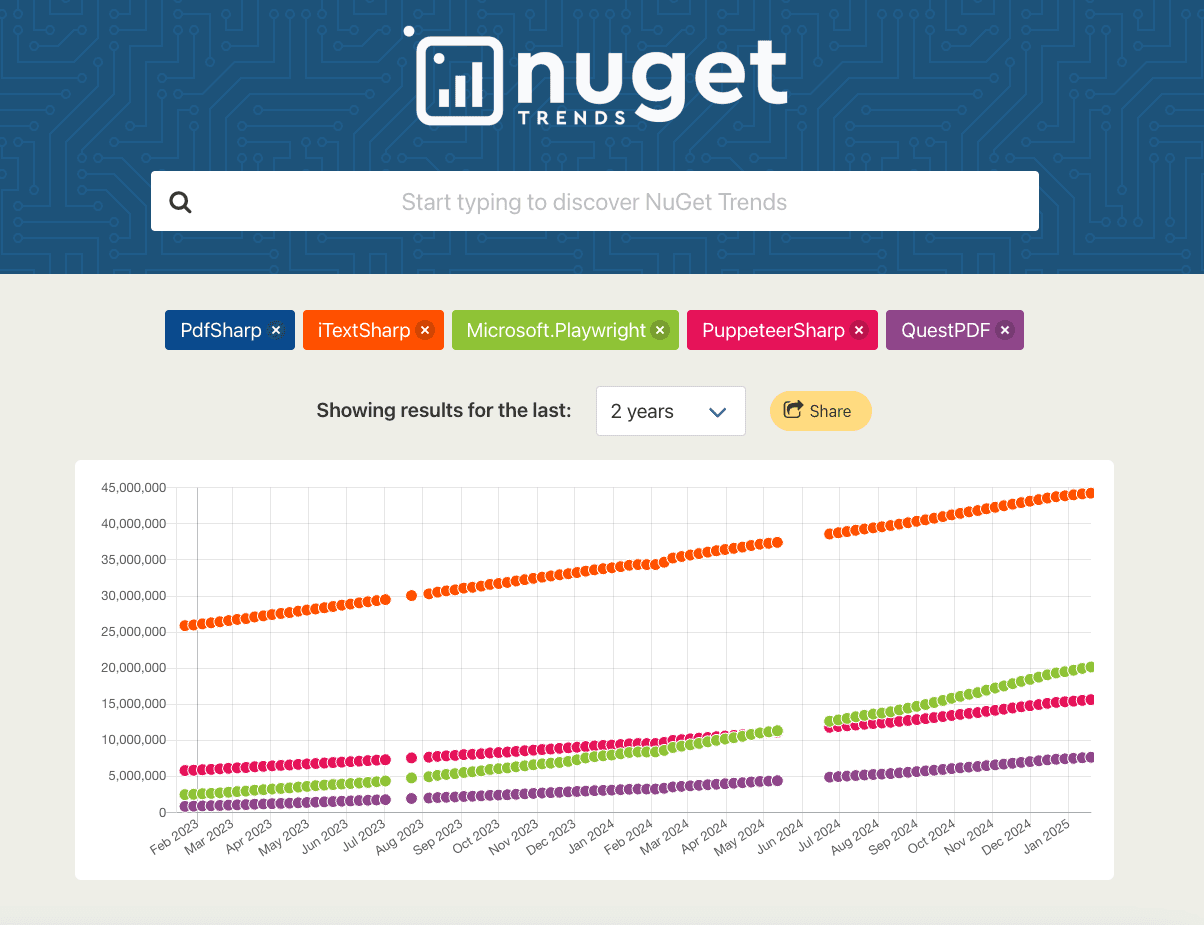
• iTextSharp: Feature-rich, widely used, but can be overkill for simpler tasks. It also has licensing considerations that may be prohibitive in some cases.
• PdfSharp: User-friendly and straightforward but lacks some advanced functionalities.
• PuppeteerSharp and Playwright: These are browser automation tools that can capture HTML as PDF. While powerful for complex web layouts, they introduce overhead (headless browser) and can be more challenging to integrate for basic PDF generation.
Ideal Use Cases for QuestPDF
• Simple PDFs: Quick generation of one-page summaries, simple invoices, receipts.
• Advanced Styling: Headers, footers, borders, columns, tables, images, and custom fonts.
• Open-Source Preference: No steep licensing fees, plus an active community.
• Code-Centric Approach: Developers who prefer defining layouts via fluent C# rather than HTML/CSS.
If you want to dig deeper on a comparison between PuppeteerSharp and other C# pdf libraries, we also have a detailed article with a full comparison between the best PDF libraries for C# in 2025.
Setting Up Your .NET Project
Install QuestPDF
You can install QuestPDF in your .NET project in two main ways:
Using the NuGet Package Manager Console:
Install-Package QuestPDFUsing the .NET CLI:
dotnet add package QuestPDFLicensing & Basic Configuration
QuestPDF is available under a community license, which generally covers most project needs. You can optionally set the license type in your code to ensure compliance:
QuestPDF.Settings.License = LicenseType.Community;(Check the official QuestPDF documentation for the latest updates on licensing.)
Generating PDF with QuestPDF
QuestPDF Code Example
Below is a straightforward snippet that demonstrates how to create a basic PDF file:
using QuestPDF.Fluent;
using QuestPDF.Infrastructure;
using QuestPDF.Helpers;

public class SimplePdfExample
{
    public void GenerateSimplePdf()
    {
        var document = Document.Create(container =>
        {
            container.Page(page =>
            {
                page.Size(PageSizes.A4);
                page.Margin(2, Unit.Centimetre);
                page.DefaultTextStyle(x => x.FontSize(12));
                page.Content().Column(col =>
                {
                    col.Item().Text("Hello from QuestPDF!");
                    col.Spacing(10);
                    col.Item().Text(Placeholders.Sentence());
                });
            });
        });
        document.GeneratePdf("simple-output.pdf");
    }
}
Result: A PDF named “simple-output.pdf” with a header message and a sentence placeholder.
Spacing, Typography, Text, and Margins
QuestPDF’s fluent API lets you easily customize formatting:
page.DefaultTextStyle((x) => x.FontSize(12).FontFamily("Arial"));

page.Content().Column((x) => {
  x.Item().Text("This is a standard paragraph.").FontSize(14);
  x.Spacing(10);
  x.Item().Text("This text is larger and bold.").FontSize(16).Bold();
  x.Spacing(20);
  x.Item()
    .Text("QuestPDF allows easy margin adjustments.")
    .FontColor(Colors.Blue.Medium);
});
Header and Footer
Headers and footers can be added with a single method call:
page.Header()
    .Text("My Custom Header")
    .Bold()
    .FontSize(18)
    .FontColor(Colors.Grey.Darken2);

page.Footer()
    .AlignCenter()
    .Text(x =>
    {
        x.Span("Page ");
        x.CurrentPageNumber();
    });
Images, Links, and Tables
• Images:
page.Content().Column(x =>
{
    x.Item().Image("logo.png");
    x.Spacing(10);
    x.Item().Text("Above is our company logo.");
});
• Links (basic text-based hyperlink):
x.Item().Text(text =>
{
    text.Span("Click here to visit our website: ");
    text.Hyperlink("https://example.com", "example.com");
});
• Tables:
page.Content().Table(table =>
{
    table.ColumnsDefinition(cols =>
    {
        cols.ConstantColumn(100);
        cols.RelativeColumn();
    });
    table.Cell().Text("Product");
    table.Cell().Text("Price");
    table.Cell().Text("Laptop");
    table.Cell().Text("$1200");
    table.Cell().Text("Mouse");
    table.Cell().Text("$20");
});
Other Advanced Features
QuestPDF also supports complex layouts, multi-page documents, custom fonts, and more. You can nest rows, columns, and grids to achieve highly customized designs.
• Multi-Page PDF Example
In QuestPDF, you can define multiple pages within a single document by adding multiple container.Page(...) calls. Each page can have its own layout, size, and styling:
using QuestPDF.Fluent;
using QuestPDF.Infrastructure;
using QuestPDF.Helpers;

public class MultiPagePdfExample
{
    public void GenerateMultiPagePdf()
    {
        var document = Document.Create(container =>
        {
            // Define Page 1
            container.Page(page =>
            {
                page.Size(PageSizes.A4);
                page.Margin(2, Unit.Centimetre);
                page.DefaultTextStyle(x => x.FontSize(12).FontFamily("Arial"));

                page.Content().Column(col =>
                {
                    col.Item().Text("Welcome to Page 1 of this multi-page PDF.")
                        .FontSize(16)
                        .Bold();

                    col.Item().Text(Placeholders.Sentence());
                });
            });

            // Define Page 2
            container.Page(page =>
            {
                page.Size(PageSizes.A4);
                page.Margin(2, Unit.Centimetre);
                page.DefaultTextStyle(x => x.FontSize(12).FontFamily("Arial"));
                page.Content().Column(col =>
                {
                    col.Item().Text("This is Page 2, showing you can extend PDFs easily.");
                    col.Item().Text(Placeholders.Paragraph());
                });
            });

            // Define Page 3 (optional)
            container.Page(page =>
            {
                page.Size(PageSizes.A4);
                page.Margin(2, Unit.Centimetre);
                page.Content().Text("Page 3: You can add as many pages as you like!");
            });
        });
        document.GeneratePdf("MultiPageExample.pdf");
    }
}
• Using a Custom Font
QuestPDF can use any font installed on your system by name. If you need to embed a custom font file, you can register it at the start of your application or before generating PDFs. For example:
using QuestPDF.Fluent;
using QuestPDF.Infrastructure;
using QuestPDF.Helpers;

public class CustomFontPdfExample
{
    public void GenerateCustomFontPdf()
    {
        // Register a custom font from a file (optional step; only needed if the font is not installed system-wide)
        FontManager.RegisterFont(File.OpenRead("Path/To/YourFont.ttf"), "MyCustomFont");
        var document = Document.Create(container =>
        {
            container.Page(page =>
            {
                page.Size(PageSizes.A4);
                page.Margin(2, Unit.Centimetre);
                // Set default text style to use your custom font
                page.DefaultTextStyle(x => x.FontFamily("MyCustomFont").FontSize(14));
                page.Content().Column(col =>
                {
                    col.Item().Text("This text is using a custom TrueType font.").Bold();
                    col.Item().Text("QuestPDF allows you to embed and reference custom fonts for branding and styling.");
                });
            });
        });
        document.GeneratePdf("CustomFontExample.pdf");
    }
}
• Nested Rows, Columns, and Grids
QuestPDF offers a fluent layout system. Below is a single-page example that uses nested rows and columns, plus a grid layout for tabular data or image galleries.
using QuestPDF.Fluent;
using QuestPDF.Infrastructure;
using QuestPDF.Helpers;

public class ComplexLayoutExample
{
    public void GenerateComplexLayoutPdf()
    {
        var doc = Document.Create(container =>
        {
            container.Page(page =>
            {
                page.Size(PageSizes.A4);
                page.Margin(1, Unit.Centimetre);
                page.DefaultTextStyle(x => x.FontFamily("Arial").FontSize(12));
                page.Content().Column(col =>
                {
                    // Title Section
                    col.Item().Text("Complex Layout Example")
                        .FontSize(18)
                        .Bold()
                        .FontColor(Colors.Blue.Medium);
                    // Nested Row
                    col.Item().Row(row =>
                    {
                        row.RelativeItem().Text("Left Side Content")
                            .FontSize(14);
                        row.RelativeItem().Text("Right Side Content")
                            .FontSize(14)
                            .FontColor(Colors.Grey.Darken2);
                    });
                    // Spacing between sections
                    col.Spacing(20);
                    // Another Row with Columns
                    col.Item().Row(row =>
                    {
                        // First Column
                        row.RelativeItem().Column(column =>
                        {
                            column.Item().Text("Column 1, Row 1");
                            column.Item().Text("Column 1, Row 2").Bold();
                        });
                        // Second Column
                        row.RelativeItem().Column(column =>
                        {
                            column.Item().Text("Column 2, Row 1");
                            column.Item().Text("Column 2, Row 2").Italic();
                        });
                    });
                    // Spacing between sections
                    col.Spacing(20);
                    // Grid Layout (3 columns in this example)
                    col.Item().Grid(grid =>
                    {
                        grid.Columns(3);
                        for (int i = 1; i <= 6; i++)
                        {
                            grid.Item().Border(1).Padding(5).Text($"Grid Cell {i}");
                        }
                    });
                    // Final Text
                    col.Spacing(20);
                    col.Item().Text("This layout demonstrates nested rows, columns, and a 3-column grid.");
                });
            });
        });
        doc.GeneratePdf("ComplexLayoutExample.pdf");
    }
}Alternative: Generating PDF from HTML
While QuestPDF itself is code-centric, you can integrate it with external HTML parsing libraries to convert HTML templates into PDFs. This approach is beneficial if you already have HTML templates or need to support complex layouts styled with CSS.
Step 1: Installing Libraries for HTML Parsing & Templating
• AngleSharp for parsing HTML documents
• RazorEngine (or a similar templating engine) for injecting dynamic data
dotnet add package AngleSharp
dotnet add package RazorEngine.NetCore
Step 2: Create an HTML Template
For example, an invoice.html:
<!DOCTYPE html>
<html>
  <head>

    <style>
              /* Basic styling for the invoice */
              body { font-family: 'Segoe UI', Tahoma, sans-serif; }
              .invoice-box { max-width: 800px; margin: auto; padding: 30px; border: 1px solid #eee; }

    </style>
  </head>
  <body>

    <div class="invoice-box">

      <h1>Invoice @Model.InvoiceNumber</h1>

      <p>Date: @Model.Date</p>

      <p>Customer: @Model.CustomerName</p>

      <p>Amount Due: $@Model.AmountDue</p>

    </div>
  </body>
</html>
Step 3: Bind Data with Razor
string template = File.ReadAllText("invoice.html");
var model = new
{
    InvoiceNumber = 123,
    Date = DateTime.Now.ToShortDateString(),
    CustomerName = "John Doe",
    AmountDue = 150.00
};
string htmlContent = RazorEngine.Razor.RunCompile(template, "invoiceKey", null, model);
Step 4: Parse HTML with AngleSharp & Render Using QuestPDF
using AngleSharp.Html.Parser;
using QuestPDF.Fluent;
using QuestPDF.Infrastructure;

public class InvoiceDocument : IDocument
{
    private readonly string _htmlContent;
    public InvoiceDocument(string htmlContent) => _htmlContent = htmlContent;
    public DocumentMetadata GetMetadata() => DocumentMetadata.Default;

    public void Compose(IDocumentContainer container)
    {
        container.Page(page =>
        {
            page.Size(PageSizes.A4);
            page.Margin(2, Unit.Centimetre);
            page.Content().Element(BuildContent);
        });
    }

    void BuildContent(IContainer container)
    {
        var parser = new HtmlParser();
        var document = parser.ParseDocument(_htmlContent);
        // Example: Just retrieving text content from HTML elements
        container.Column(col =>
        {
            foreach (var element in document.Body.Children)
            {
                col.Item().Text(element.TextContent);
            }
        });
    }
}
Finally:
var doc = new InvoiceDocument(htmlContent);
doc.GeneratePdf("invoice.pdf");
Alternative: Convert HTML to PDF Using pdf noodle
Managing HTML-to-PDF conversion at scale can quickly become a nightmare!
Especially in serverless environments where cold starts, memory limits, and headless browser quirks love to break at the worst possible time (we even wrote a full article about it). Add constant template iterations, version control headaches, and the need to support non-technical contributors, and suddenly your “simple PDF library” turns into an ongoing engineering project.
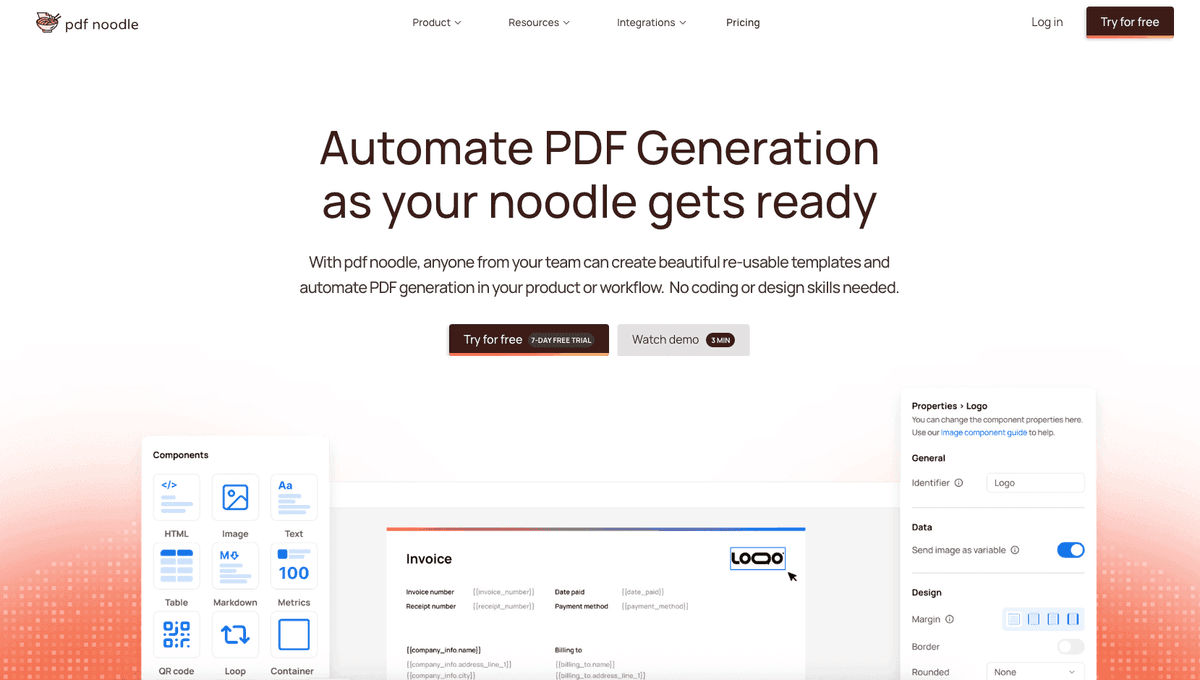
pdf noodle eliminates all of that.
Instead of maintaining brittle infrastructure or wrestling with outdated pdf libraries, pdf noodle gives you a battle-tested PDF generation API that just works!
Fast, scalable, and designed for both developers and non-developers. You send raw HTML or use our AI-powered template builder, and pdf noodle handles the rendering, scaling, optimization, and delivery so your team doesn’t have to.
Here's an example of a simple API request to generate your pixel-perfect PDF with just a few lines of code:
using System;
using System.Net.Http;
using System.Text;
using System.Threading.Tasks;

namespace PdfApiIntegration
{
    class Program
    {
        static async Task Main(string[] args)
        {
            var client = new HttpClient();
            client.DefaultRequestHeaders.Add("Authorization", "Bearer your-api-key");
            var requestBody = new
            {
                html = "<html>your-html...",
            };
            var content = new StringContent(
                Newtonsoft.Json.JsonConvert.SerializeObject(requestBody),
                Encoding.UTF8,
                "application/json"
            );
            var response = await client.PostAsync("https://api.Alternative: Convert HTML to PDF Using pdf noodle

Managing HTML-to-PDF conversion at scale can quickly become a nightmare!

Especially in serverless environments where cold starts, memory limits, and headless browser quirks love to break at the worst possible time (we even wrote a full article about it). Add constant template iterations, version control headaches, and the need to support non-technical contributors, and suddenly your “simple PDF library” turns into an ongoing engineering project.

pdf noodle eliminates all of that.

Instead of maintaining brittle infrastructure or wrestling with outdated pdf libraries, pdf noodle gives you a battle-tested PDF generation API that just works!

Fast, scalable, and designed for both developers and non-developers. You send raw HTML or use our AI-powered template builder, and pdf noodle handles the rendering, scaling, optimization, and delivery so your team doesn’t have to.

Here's an example of a simple API request to generate your pixel-perfect PDF with just a few lines of code:

using System;
using System.Net.Http;
using System.Text;
using System.Threading.Tasks;

namespace PdfApiIntegration
{
    class Program
    {
        static async Task Main(string[] args)
        {
            var client = new HttpClient();
            client.DefaultRequestHeaders.Add("Authorization", "Bearer your-api-key");
            var requestBody = new
            {
                html = "<html>your-html...",
            };
            var content = new StringContent(
                Newtonsoft.Json.JsonConvert.SerializeObject(requestBody),
                Encoding.UTF8,
                "application/json"
            );
            var response = await client.PostAsync("https://api.pdfnoodle.com/v1/html-to-pdf/sync", content);
            if (response.IsSuccessStatusCode)
            {
                var pdfBytes = await response.Content.ReadAsByteArrayAsync();
                File.WriteAllBytes("invoice.pdf", pdfBytes);
                Console.WriteLine("PDF generated using PDFForge API.");
            }
            else
            {
                Console.WriteLine("Error generating PDF: " + response.ReasonPhrase);
            }
        }
    }
}

pdf noodle also includes a powerful AI Agent that can generate PDF templates instantly, along with a modern editor for refining the design, also using AI, to match your brand. You don't need developing or design experience to quickly update layouts, adjust styling, and manage template versions.

Here’s a quick demo showing how it works:

You can create your account and design your first template without any upfront payment..com/v1/html-to-pdf/sync", content);
            if (response.IsSuccessStatusCode)
            {
                var pdfBytes = await response.Content.ReadAsByteArrayAsync();
                File.WriteAllBytes("invoice.pdf", pdfBytes);
                Console.WriteLine("PDF generated using PDFForge API.");
            }
            else
            {
                Console.WriteLine("Error generating PDF: " + response.ReasonPhrase);
            }
        }
    }
}
pdf noodle also includes a powerful AI Agent that can generate PDF templates instantly, along with a modern editor for refining the design, also using AI, to match your brand. You don't need developing or design experience to quickly update layouts, adjust styling, and manage template versions.
Here’s a quick demo showing how it works:
You can create your account and design your first template without any upfront payment.
Conclusion
When You Should Use QuestPDF
Choose QuestPDF if you want an open-source, fluent, and developer-friendly way to generate PDFs in .NET without complex licensing requirements. It’s perfect for projects that need custom layouts, moderate complexity, and a code-focused approach.
When You Should Consider Other Libraries
If your project demands extensive HTML-to-PDF rendering or you already rely heavily on HTML/CSS for layouts, libraries like Playwright or PuppeteerSharp might be more direct (albeit with higher overhead). For enterprise-level features or existing codebases, iTextSharp or PdfSharp could also be worth evaluating.
When to Use Third-Party PDF APIs
If you don't want to waste time maintaining pdfs layouts and their infrastructure or if you don't want to keep track of best practices to generate PDFs at scale, third-party PDF APIs like pdf noodle will save you hours of work and deliver a high quality pdf layout.
Try it yourself: Need a quick conversion without writing code? Use our HTML to PDF tool — no signup required.