

Introduction to PyFPDF
PyFPDF is a Python library for generating PDF documents, known for its simplicity and versatility. It is a port of the PHP library FPDF, offering a straightforward way to create PDFs without external dependencies.
You can see their full documentation here.
Comparison PyFPDF with Other PDF Libraries
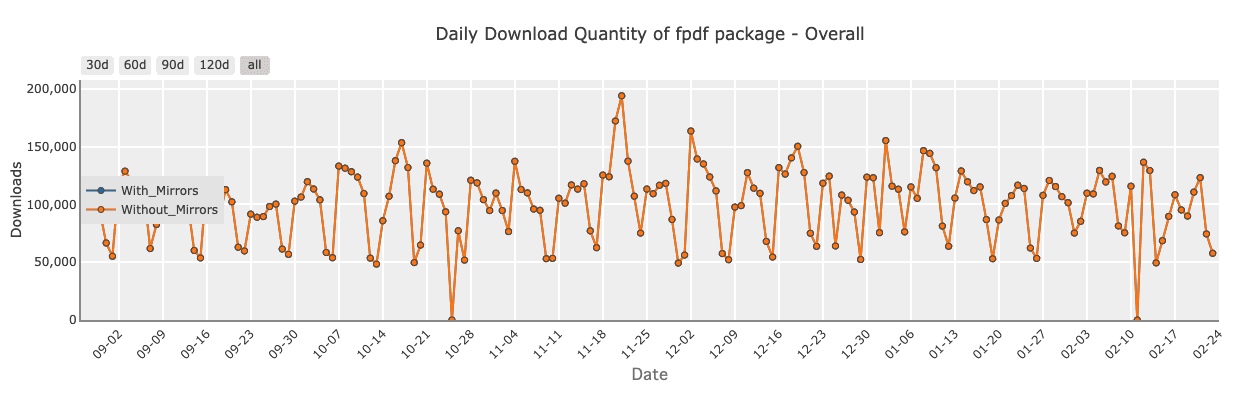
When choosing a PDF library for Python, several options are available, each with its strengths and weaknesses. Here’s a comparison of PyFPDF with other popular libraries:
- Playwright: Ideal for web-based PDF generation using browser automation. Read more about Playwright.
- Pyppeteer: Similar to Playwright, it uses browser automation for PDF generation. Learn more about Pyppeteer.
- PDFKit: Specializes in converting HTML to PDF using
wkhtmltopdf. Discover PDFKit capabilities. - ReportLab: Offers robust features for creating complex PDF layouts, including graphics and charts. Explore ReportLab.
- PyFPDF: Excels at simplicity and ease of use, perfect for straightforward PDF generation without external dependencies.
If you want to go deep on a full comparison between the best pdf libraries in python in 2025, you can check out this guide.
Setting Up PyFPDF
Installation Guide
To start using PyFPDF, install it via PyPI:
pip install fpdfBasic Configuration
Once installed, you can configure PyFPDF for basic PDF generation. Here’s an example demonstrating various features:
from fpdf import FPDF

# Create a PDF object
pdf = FPDF()

# Add a page
pdf.add_page()

# Set font and size
pdf.set_font("Arial", size=12)  # Set font to Arial with size 12

# Add text
pdf.cell(200, 10, txt="Hello, World!", ln=True, align="C")  # Add centered text

# Add a link
pdf.cell(200, 10, txt="Visit our website", ln=True, align="C", link="https://example.com")  # Add a link

# Add an image
pdf.image("path/to/image.jpg", x=50, y=60, w=100)  # Add an image at specified coordinates

# Set page margins
pdf.set_margins(left=10, top=10, right=10)  # Set left, top, and right margins

# Output the PDF
pdf.output("basic_pdf.pdf")Generating PDFs with PyFPDF
Method 01: Converting HTML to PDF
While PyFPDF doesn’t natively support converting HTML to PDF, you can manually parse HTML and add elements to the PDF. Here’s an example of generating an invoice with a header, logo, and table using dynamic content:
from bs4 import BeautifulSoup
from fpdf import FPDF

# Sample invoice data
invoice_data = {
    "logo": "path/to/logo.png",
    "company_name": "Example Inc.",
    "invoice_number": "INV001",
    "date": "2023-04-01",
    "items": [
        {"name": "Item 1", "quantity": 2, "price": 10.99},
        {"name": "Item 2", "quantity": 1, "price": 5.99}
    ]
}

# Create PDF
pdf = FPDF()
pdf.add_page()
pdf.set_font("Arial", size=12)

# Add header with logo and company name
pdf.image(invoice_data["logo"], x=10, y=10, w=50)
pdf.cell(200, 10, txt=invoice_data["company_name"], ln=True, align="C")

# Add invoice details
pdf.cell(200, 10, txt=f"Invoice Number: {invoice_data['invoice_number']}", ln=True, align="L")
pdf.cell(200, 10, txt=f"Date: {invoice_data['date']}", ln=True, align="L")

# Create table for items
pdf.ln(10)  # Add a line break
pdf.set_font("Arial", size=10)
pdf.cell(30, 10, txt="Item", border=1, align="C", fill=False)
pdf.cell(50, 10, txt="Quantity", border=1, align="C", fill=False)
pdf.cell(50, 10, txt="Price", border=1, align="C", fill=False)
pdf.ln(10)
for item in invoice_data["items"]:
    pdf.cell(30, 10, txt=item["name"], border=1, align="L", fill=False)
    pdf.cell(50, 10, txt=str(item["quantity"]), border=1, align="C", fill=False)
    pdf.cell(50, 10, txt=str(item["price"]), border=1, align="R", fill=False)
    pdf.ln(10)

pdf.output("invoice_pdf.pdf")
Method 02: Creating Custom PDF Layouts
Here’s another example of creating a custom invoice layout with PyFPDF:
from fpdf import FPDF

# Sample invoice data
invoice_data = {
    "logo": "path/to/logo.png",
    "company_name": "Example Inc.",
    "invoice_number": "INV001",
    "date": "2023-04-01",
    "items": [
        {"name": "Item 1", "quantity": 2, "price": 10.99},
        {"name": "Item 2", "quantity": 1, "price": 5.99}
    ]
}

# Create PDF
pdf = FPDF()
pdf.add_page()
pdf.set_font("Arial", size=12)

# Add header with logo and company name
pdf.image(invoice_data["logo"], x=10, y=10, w=50)
pdf.cell(200, 10, txt=invoice_data["company_name"], ln=True, align="C")

# Add invoice details
pdf.cell(200, 10, txt=f"Invoice Number: {invoice_data['invoice_number']}", ln=True, align="L")
pdf.cell(200, 10, txt=f"Date: {invoice_data['date']}", ln=True, align="L")

# Create table for items
pdf.ln(10)  # Add a line break
pdf.set_font("Arial", size=10)
pdf.cell(30, 10, txt="Item", border=1, align="C", fill=False)
pdf.cell(50, 10, txt="Quantity", border=1, align="C", fill=False)
pdf.cell(50, 10, txt="Price", border=1, align="C", fill=False)
pdf.ln(10)
for item in invoice_data["items"]:
    pdf.cell(30, 10, txt=item["name"], border=1, align="L", fill=False)
    pdf.cell(50, 10, txt=str(item["quantity"]), border=1, align="C", fill=False)
    pdf.cell(50, 10, txt=str(item["price"]), border=1, align="R", fill=False)
    pdf.ln(10)

pdf.output("custom_invoice_pdf.pdf")
Advanced Features: Dealing with Dynamic Data
PyFPDF can handle dynamic data effectively by integrating with template engines like Jinja2. Here’s an example of generating a PDF with dynamic content using Jinja2:
from jinja2 import Template
from fpdf import FPDF

# Sample invoice data
invoice_data = {
    "logo": "path/to/logo.png",
    "company_name": "Example Inc.",
    "invoice_number": "INV001",
    "date": "2023-04-01",
    "items": [
        {"name": "Item 1", "quantity": 2, "price": 10.99},
        {"name": "Item 2", "quantity": 1, "price": 5.99}
    ]
}

# Define a Jinja2 template for the invoice
template = Template("""
<p>{{ company_name }}</p>
<p>Invoicen Number: {{ invoice_number }}</p>
<p>Date: {{ date }}</p>
<table>
    <tr>
        <th>Item</th>
        <th>Quantity</th>
        <th>Price</th>
    </tr>
    {% for item in items %}
    <tr>
        <td>{{ item.name }}</td>
        <td>{{ item.quantity }}</td>
        <td>{{ item.price }}</td>
    </tr>
    {% endfor %}
</table>
""")

# Generate dynamic content
content = template.render(invoice_data)

# Parse and add content to PDF
pdf = FPDF()
pdf.add_page()
pdf.set_font("Arial", size=12)
pdf.multi_cell(0, 10, txt=content)
pdf.output("dynamic_invoice_pdf.pdf")
Alternative: PDF Generation with pdf noodle
Managing HTML-to-PDF conversion at scale can quickly become a nightmare!
Especially in serverless environments where cold starts, memory limits, and headless browser quirks love to break at the worst possible time (we even wrote a full article about it). Add constant template iterations, version control headaches, and the need to support non-technical contributors, and suddenly your “simple PDF library” turns into an ongoing engineering project.
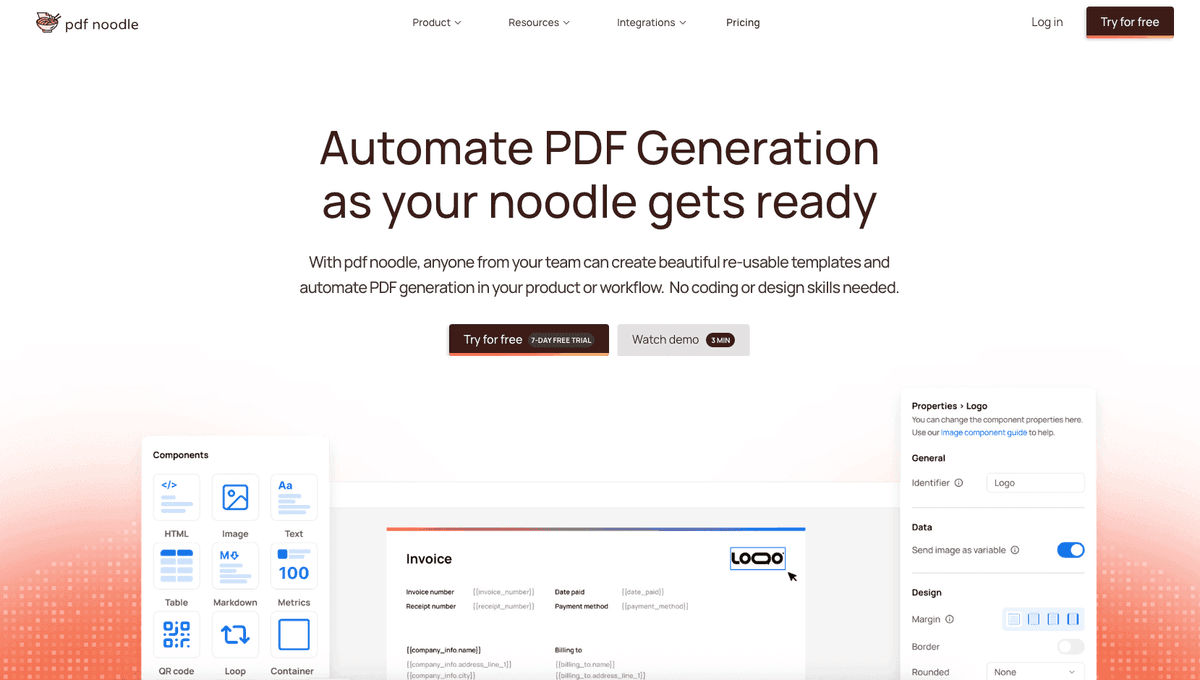
pdf noodle eliminates all of that.
Instead of maintaining brittle infrastructure or wrestling with outdated pdf libraries, pdf noodle gives you a battle-tested PDF generation API that just works!
Fast, scalable, and designed for both developers and non-developers. You send raw HTML or use our AI-powered template builder, and pdf noodle handles the rendering, scaling, optimization, and delivery so your team doesn’t have to.
Here's an example of a simple API request to generate your pixel-perfect PDF with just a few lines of code:
import requests
import json

url = 'https://api.pdfnoodle.com/v1/html-to-pdf/sync'
headers = {
    'Authorization': 'Bearer your-api-key',
    'Content-Type': 'application/json'
}
data = {
    'html': '<html>your-html-here...',
}

response = requests.post(url, headers=headers, data=json.dumps(data))
with open('output.pdf', 'wb') as f:
        f.write(response.content)
pdf noodle also includes a powerful AI Agent that can generate PDF templates instantly, along with a modern editor for refining the design, also using AI, to match your brand. You don't need developing or design experience to quickly update layouts, adjust styling, and manage template versions.
Here’s a quick demo showing how it works:
You can create your account and design your first template without any upfront payment.
Conclusion
When to Use PyFPDF:
PyFPDF is ideal for scenarios where simplicity and ease of use are paramount. It’s perfect for generating basic PDF reports or documents without the need for external dependencies.
Alternatives to PyFPDF
For more complex PDF generation tasks, such as converting HTML to PDF or creating dynamic layouts with advanced graphics, libraries like PDFKit or ReportLab might be more appropriate.
Using Third-Party PDF APIs
If you don't want to waste time maintaining pdfs layouts and their infrastructure or if you don't want to keep track of best practices to generate PDFs at scale, third-party PDF APIs like pdf noodle will save you hours of work and deliver a high quality pdf layout.
Try it yourself: Need a quick conversion without writing code? Use our free HTML to PDF tool — no signup required.